

This guide explains how to download files from your service using Internet Download Manager (IDM).
Step 1 – Download and Install Internet Download Manager
Download the latest version of Internet Download Manager from:
http://www.internetdownloadmanager.com/
Install the application and launch it.
Step 2 – Open Direct HTTP Access
Log in to your Client Area and open your service details.
Navigate to:
Services → My Services → Your Service → View Details → Direct HTTP Access
This will open your files in your web browser.
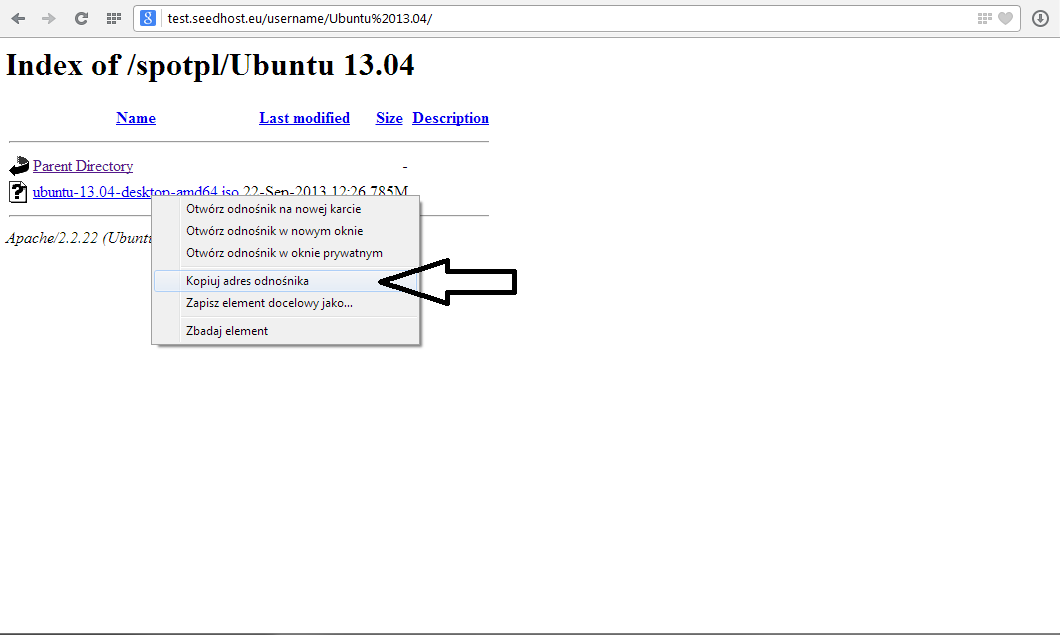
Step 3 – Copy the File URL
Locate the file you want to download and copy its URL.
Step 4 – Add the Download to IDM
Open Internet Download Manager and click Add URL.
Paste the copied URL, enable Use authorization and enter your service username and password.
Click OK, choose the destination directory on your computer and start the download.
Alternative Authentication Method
Instead of using the Use authorization option, you can include your credentials directly in the download URL.
For example, if the original URL is:
http://test.seedhost.eu/username/downloads/ubuntu-12.04.3-server-i386.iso
You can modify it to:
http://username:password@test.seedhost.eu/username/downloads/ubuntu-12.04.3-server-i386.iso
Replace username and password with your HTTP credentials.
When using this format, you do not need to enable Use authorization or enter your login credentials separately in IDM.
Notes
- Your service username and password can be found in the HTTP Details section of your Client Area.
- Embedding your password directly in the URL is convenient but less secure, as it may be stored in your browser history or download history.
- If configured correctly, Internet Download Manager will begin downloading the file immediately after you confirm the destination folder.
