

How to Connect to Your Dedicated Server via SSH
This guide explains how to connect to your Dedicated Server via SSH.
You will need your server hostname or IP address and SSH login details. These details are available in the Client Area under your Dedicated Server details.
For Linux Dedicated Servers, the SSH username is usually root. The password is the root password shown in the Client Area or the password you selected during OS installation.
Windows
PuTTY
Download and install PuTTY:
Start PuTTY and go to Connection → Data.
- Enter your SSH username in the Auto-login username field.
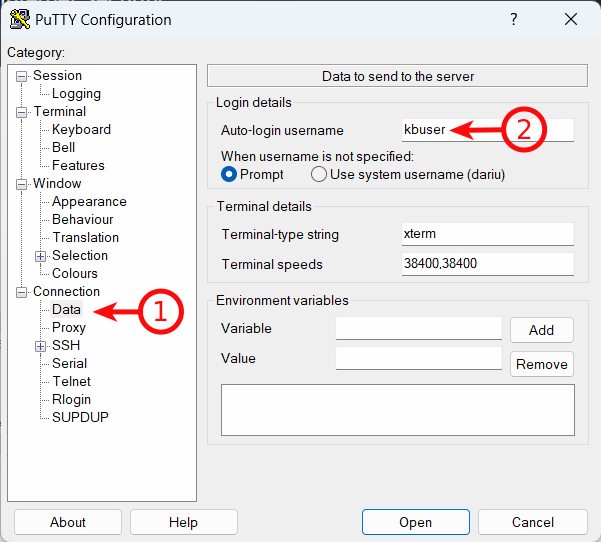
For most Linux Dedicated Servers, the SSH username is:
root
Now go back to Session.
- Enter your server hostname or IP address in the Host Name field.
- Name the session as you wish.
- Click Save.
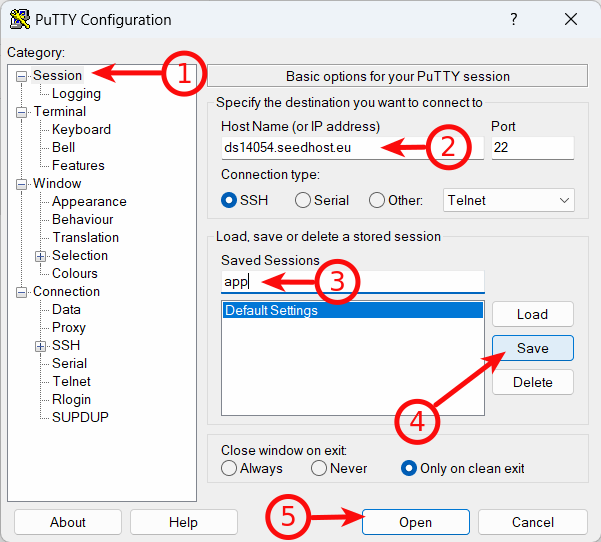
Click Open to start the SSH connection.
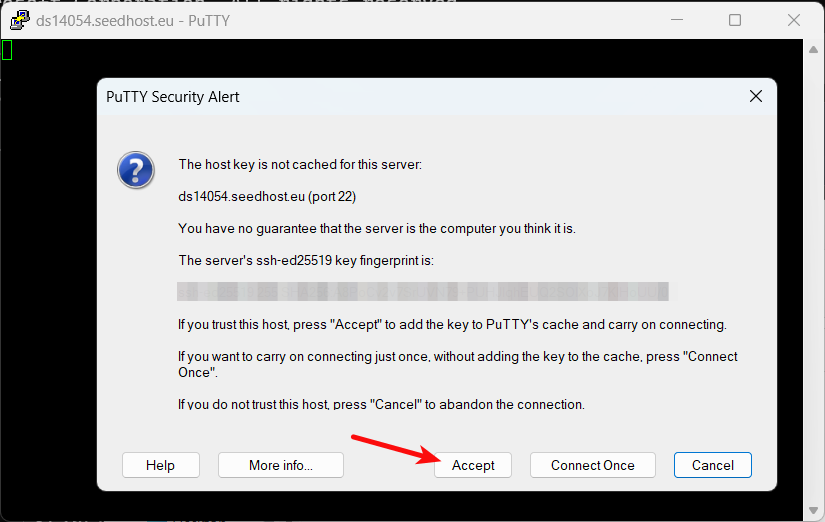
If this is your first login, you will need to accept the SSH key fingerprint. This is normal. Click Accept.
You will now be asked for your SSH password. Type it and press Enter.
Your password will not be visible while typing. This is normal SSH behaviour.
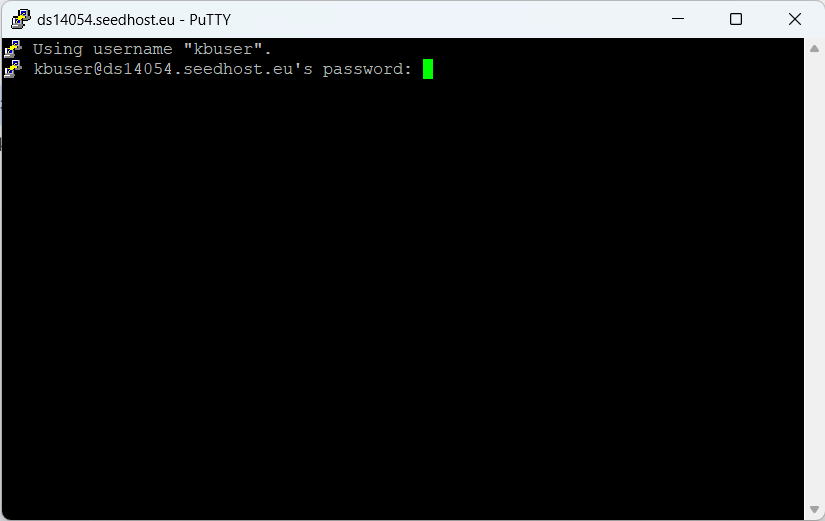
If the login details are correct, you should be logged in to your Dedicated Server via SSH.
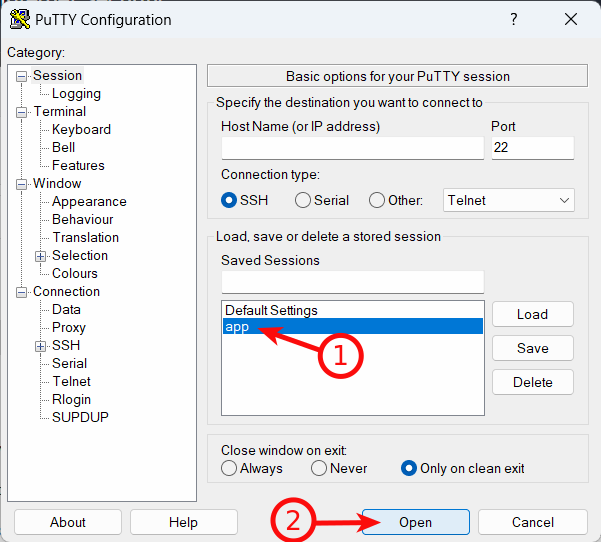
To connect again later, start PuTTY, select the saved session and click Open.
OpenSSH
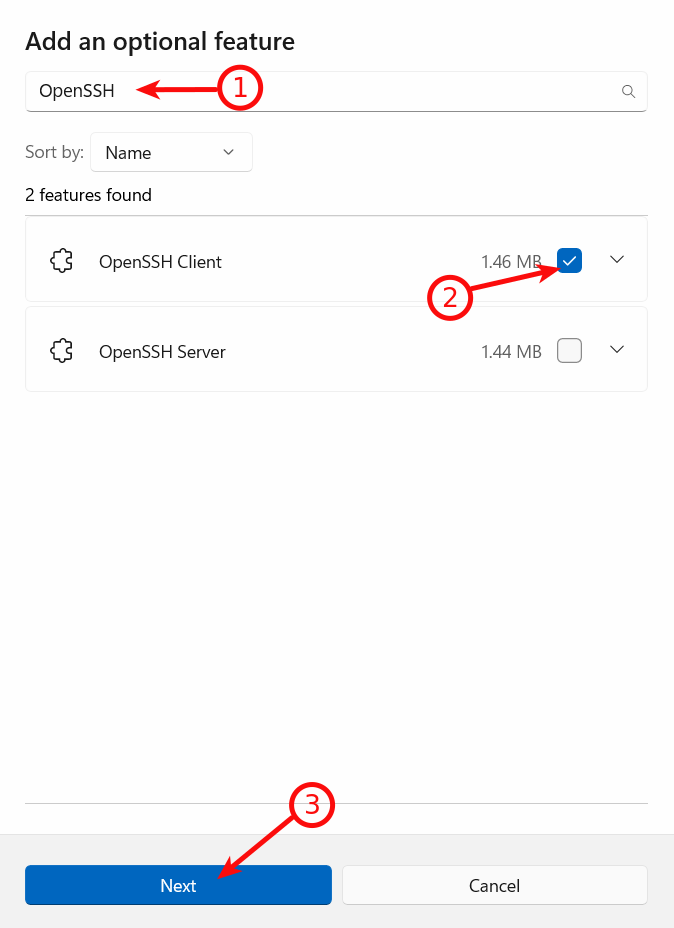
Recent Windows versions usually include OpenSSH Client by default. If it is not available, you can install it from Windows Optional Features.
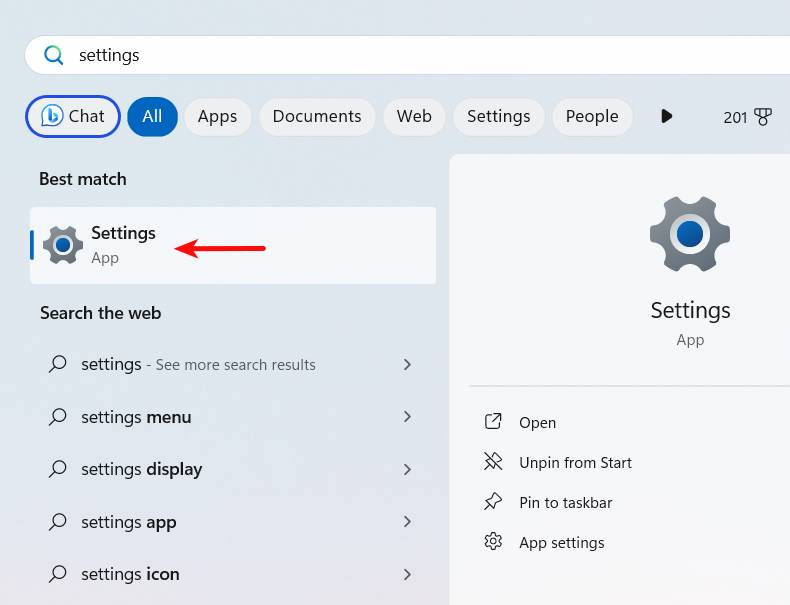
Press the Windows key and open Settings.
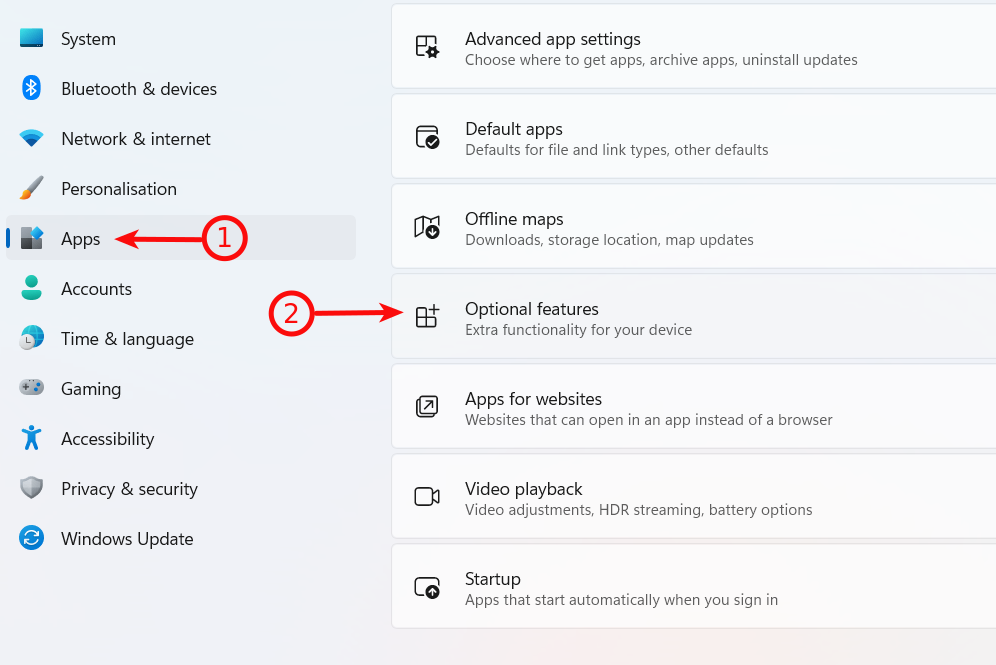
Go to Apps → Optional features.
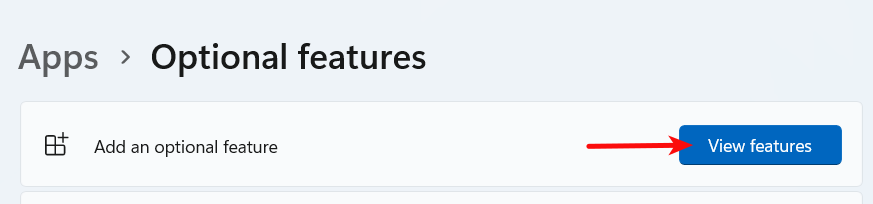
Click View features.
Search for OpenSSH, tick OpenSSH Client and click Next.
Install it.
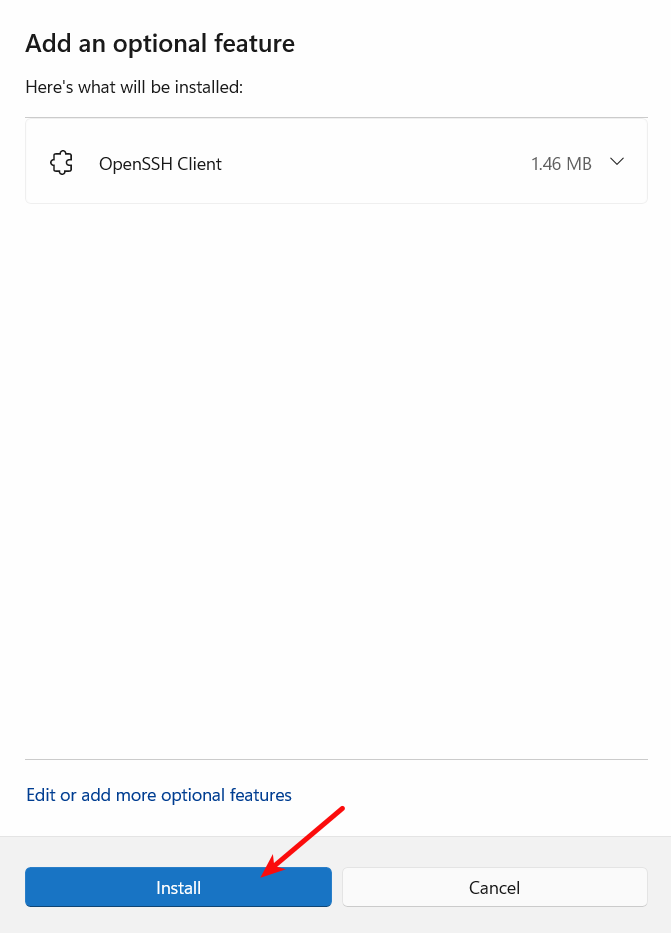
After installation, log out of your Windows user and log in again.
Then open Windows PowerShell or Command Prompt and use the following command:
ssh root@server.host
Replace server.host with your Dedicated Server hostname or IP address.
For example:
ssh root@ds14054.seedhost.eu
or:
ssh root@123.123.123.123
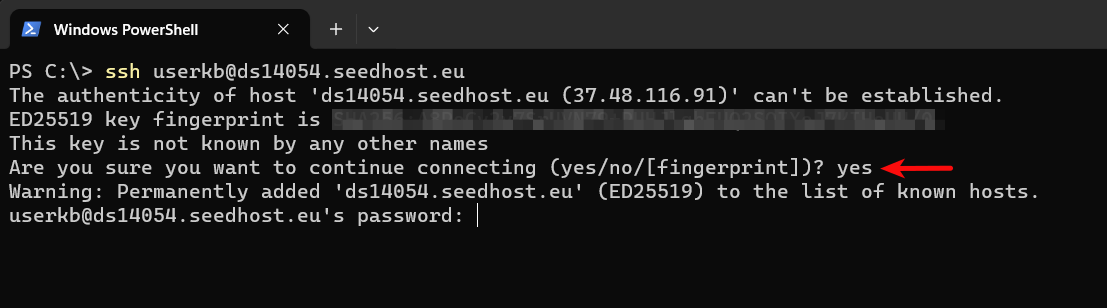
If this is your first login, you will need to accept the SSH key fingerprint. This is normal. Type yes and press Enter.
You will now be asked for your SSH password. Type it and press Enter. Please note that your password will not be visible while typing.
If everything is correct, you should be logged in to your Dedicated Server via SSH.
Linux / macOS
Open the terminal and use the following command:
ssh root@server.host
Replace server.host with your Dedicated Server hostname or IP address.
For example:
ssh root@ds14054.seedhost.eu
or:
ssh root@123.123.123.123

If this is your first login, you will need to accept the SSH key fingerprint. This is normal. Type yes and press Enter.
You will now be asked for your SSH password. Type it and press Enter. Please note that your password will not be visible while typing.
If everything is correct, you should be logged in to your Dedicated Server via SSH.
Notes
- Your server hostname, IP address and login details are available in the Client Area under your Dedicated Server details.
- For Linux Dedicated Servers, the default SSH username is usually root.
- The password is not displayed while typing. This is normal SSH behaviour.
- If this is your first connection, accepting the SSH key fingerprint is required.
Verification
If you can see the server command line after entering your password, you are connected to your Dedicated Server via SSH.
If you cannot log in, make sure you are using the correct hostname or IP address, SSH username and password from the Client Area.
