

This guide explains how to connect to your Transmission instance using Transmission Remote GUI.
Transmission Remote GUI provides a native desktop interface for managing your Transmission client without using the web interface.
Step 1 – Download Transmission Remote GUI
Download the latest version for your operating system from:
https://github.com/transmission-remote-gui/transgui
Step 2 – Install the Application
Install Transmission Remote GUI on your computer and launch the application.
Step 3 – Create a New Connection
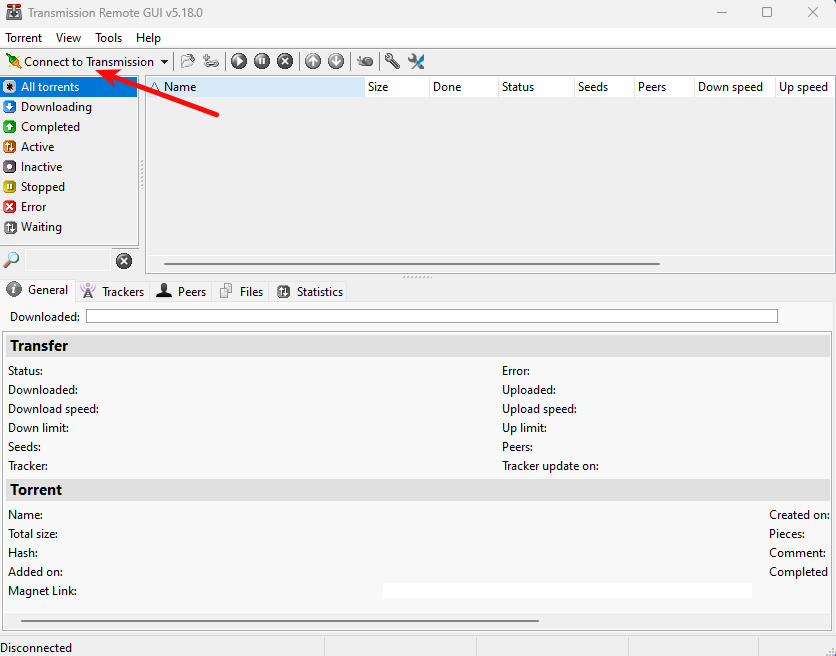
Select Connect to Transmission → New connection...
Configure the connection as shown below:
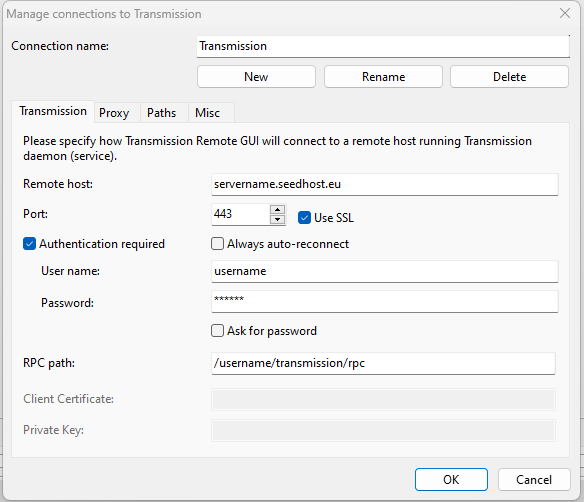
Use the following settings:
- Connection name: Any name you prefer.
- Remote host: Your server hostname.
- Port: 443
- SSL: Enabled
- User name: Your Transmission username.
- Password: Your Transmission password.
- RPC path:
/username/transmission/rpc, replacing username with your Transmission username.
Once the configuration is complete, save the connection and connect to your Transmission instance.
Your server hostname, Transmission username and password can be found in the Transmission Details section of your Client Area.
