

How to Connect to Dedicated Server IPMI Remote Management
This guide explains how to connect to the IPMI / Remote Management panel of your Dedicated Server.
To access IPMI, you need:
- a web browser,
- an OpenVPN client,
- the OpenVPN configuration file,
- your remote management credentials from the Client Area.
IPMI access is available through a private remote management network. You must connect to the OpenVPN remote management VPN before opening the IPMI address in your browser.
Step 1 – Install an OpenVPN Client
First, install an OpenVPN client on your computer.
You can download the official OpenVPN client here:
On macOS, you can also use Tunnelblick:
On Windows, run the OpenVPN client as Administrator. Otherwise, the VPN connection may not work correctly.
Step 2 – Download the OpenVPN Configuration File
Download the OpenVPN configuration file for remote management access:
Download OpenVPN configuration file
Import this file into your OpenVPN client.
On Windows, Ubuntu and macOS, you can usually right-click the .ovpn file and open it with your OpenVPN client. On macOS, open it with Tunnelblick if you use Tunnelblick.
Step 3 – Find Your Server ID
To connect to the remote management VPN, you need your OpenVPN username.
Your OpenVPN username is created from your server ID. You can find the server ID in the Client Area under your server hardware details.
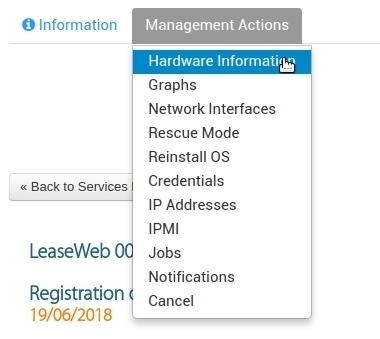
The OpenVPN username format is:
SXXXXX
Replace XXXXX with your server ID.
For example, if your server ID is:
62664
your OpenVPN username will be:
S62664
Step 4 – Find Your OpenVPN Password
The OpenVPN password can be found in the Credentials section in the Client Area.

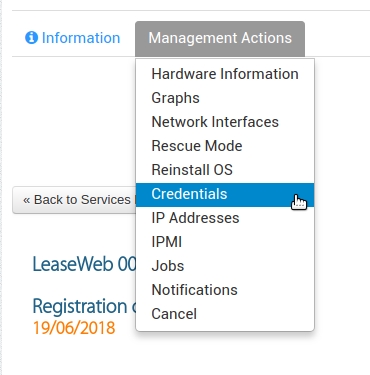

Use the username in the SXXXXX format and the password from the Credentials section to connect to the OpenVPN remote management network.
Step 5 – Connect to the Remote Management VPN
Open your OpenVPN client and connect using the imported configuration file.
When asked for login details, use:
- Username – your server ID with S at the beginning, for example S62664.
- Password – the OpenVPN password from the Credentials section.
After the VPN connection is established, you can access the private IPMI network.
Step 6 – Find the Remote Management IP Address
After connecting to the VPN, go back to the Client Area and open your server details.
Find the IP Addresses section and look for the remote management IP address.
The remote management IP address usually starts with:
10.
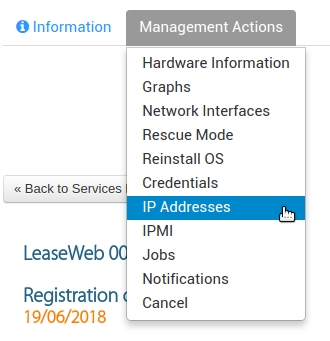

Step 7 – Open IPMI in Your Browser
When you are connected to the VPN, open the remote management IP address in your web browser.
Example:
https://10.x.x.x
or:
http://10.x.x.x
Log in to IPMI using the remote management credentials shown in the Credentials section.

Restarting IPMI
If you cannot find the remote management IP address, the IPMI credentials are missing or the current credentials do not work, you can restart IPMI from the Client Area.
Restarting IPMI may also restart the server. After the restart, it usually takes about 5–10 minutes for IPMI access and new credentials to become available.
Each IPMI restart generates a new administrator password. This can also be useful if you shared IPMI access with someone temporarily and want to block access using the old password.
After IPMI is restarted, use the newly generated credentials from the Client Area.
Verification
If the VPN is connected and the remote management IP address opens in your browser, you can log in to IPMI using the credentials from the Client Area.
If IPMI does not open in your browser, make sure the OpenVPN connection is active and that you are using the correct remote management IP address and credentials.
