

VNC Remote Desktop – How to Connect
This guide explains how to connect to your VNC Remote Desktop from Windows, macOS, Linux, Android or iOS.
If your package supports VNC Remote Desktop, you can install and manage it from the Client Area on your service details page.
Before You Start
Before connecting to VNC, make sure you have the following details:
- Your VNC address.
- Your VNC password.
- Your service username, if required by your VNC client.
You can find your VNC connection details in the Client Area on your service details page.
Your VNC password may be different from your SSH/FTP password. Use the VNC password shown in the Client Area.
Windows, macOS, Android and iOS
For Windows, macOS, Android and iOS, we recommend using RealVNC Viewer.
You can download RealVNC Viewer from the official website:
After installing RealVNC Viewer, open the application and enter your VNC address from the Client Area.
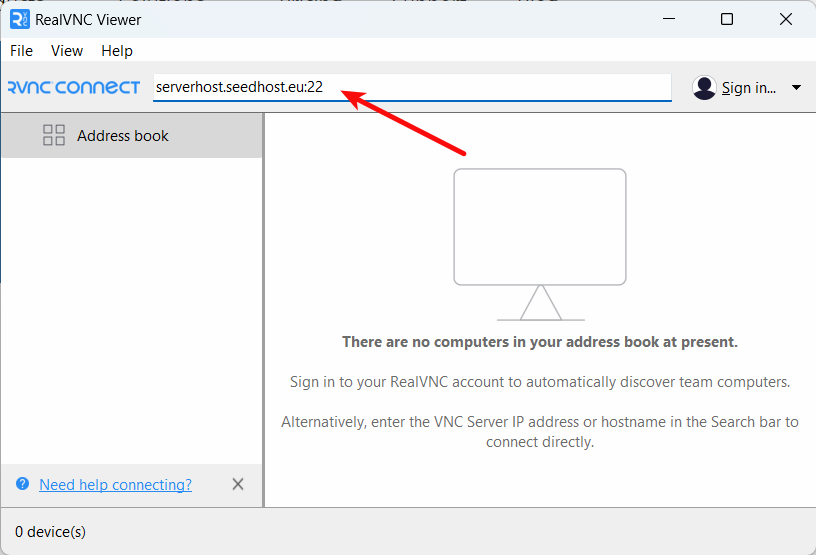
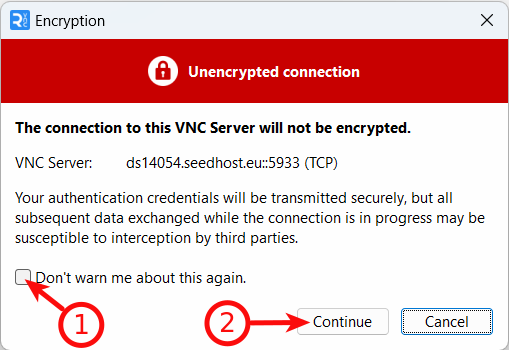
You may see a warning about an unencrypted connection. Tick Don't warn me about this again if you do not want to see this warning again, then click Continue.
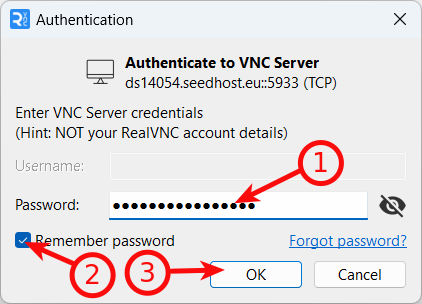
Now enter your VNC password and click OK.
You should now be connected to your Remote Desktop.
If the remote desktop opens, your VNC connection is working correctly.
Linux
On Linux, you can connect to VNC using several applications. We recommend SSVNC because it supports encryption over SSH.
Option 1 – Connect with SSVNC
Install SSVNC from your Linux package repository.
On Ubuntu or Debian, run:
sudo apt update
sudo apt -y install ssvnc
After installation, run the SSVNC application.
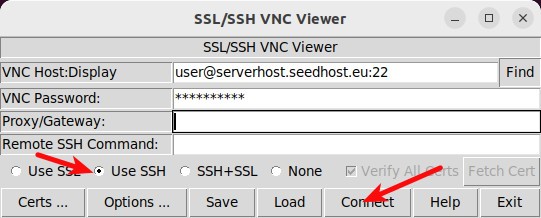
Configure the connection as follows:
- VNC Host:Display – enter your connection in the following format:
user@yourvncaddress
Replace user with your service username and yourvncaddress with your VNC address from the Client Area.
- VNC Password – enter your VNC password.
- Tick Use SSH.
- Click Connect.
You should now be connected to your VNC Remote Desktop.
SSVNC is recommended on Linux because it can connect through SSH and provides a more secure connection method.
Option 2 – Connect with Remmina
You can also use Remmina to connect to your VNC Remote Desktop.
On Ubuntu or Debian, install Remmina with:
sudo apt update
sudo apt -y install remmina
If Remmina is not available in your default repository, you can check the official installation instructions:
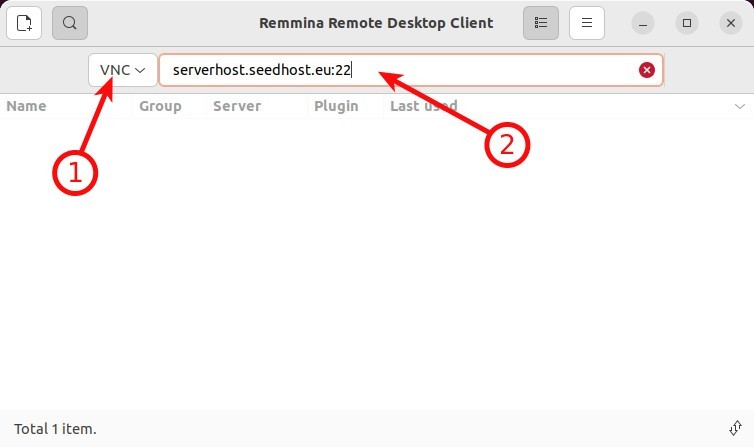
After installation, open Remmina and change the protocol to VNC.
Enter your VNC address from the Client Area.
When asked for a password, enter your VNC password and click OK.
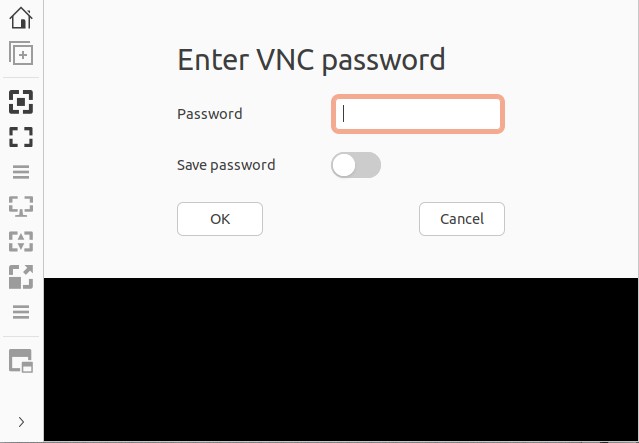
You should now be connected to your Remote Desktop.
Troubleshooting
If you cannot connect, make sure VNC is installed and running on your service and that you are using the correct VNC address and password from the Client Area.
If your VNC client shows a warning about encryption, you can continue with the connection or use SSVNC on Linux with the Use SSH option enabled.
Verification
If you can see your Remote Desktop after entering the VNC password, your VNC connection has been configured correctly.
