

This guide explains how to download files from your SeedHost service using jDownloader.
Step 1 – Download jDownloader
Download the latest version of jDownloader for your operating system:
http://jdownloader.org/download/index
Step 2 – Install jDownloader
Install jDownloader on your computer and launch the application.
Step 3 – Open Your File Manager
Log in to your FTP file manager using the Direct HTTP Access button available in:
Client Area → Services → My Services → Your Service → View Details
Step 4 – Copy the File URL
Locate the file you want to download and copy its URL.
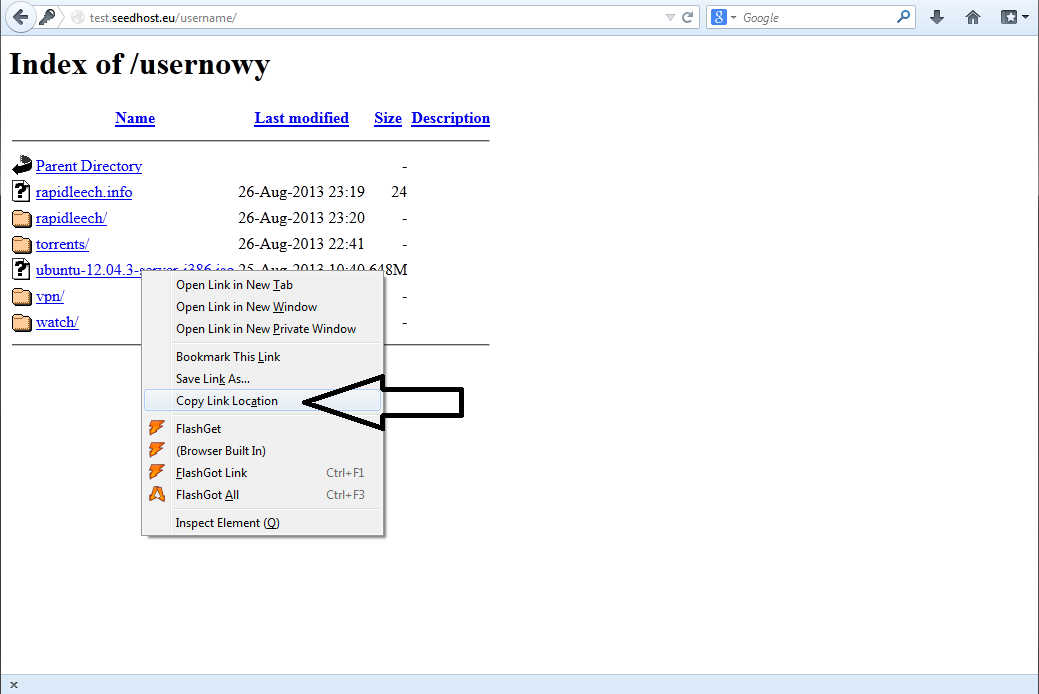
Step 5 – Add the URL to jDownloader
Open jDownloader and switch to the LinkGrabber tab.
Click Add New Links (or Add URL, depending on your jDownloader version) and paste the copied URL.
Example:
http://test.seedhost.eu/username/downloads/ubuntu-12.04.3-server-i386.iso
You must include your service username and password in the URL by inserting username:password@ immediately after http://.
Example:
http://username:password@test.seedhost.eu/username/downloads/ubuntu-12.04.3-server-i386.iso
Replace:
- username with your service username.
- password with your service password.
Step 6 – Start the Download
After adding the link, click Continue with all.
If everything has been configured correctly, the download will start automatically in the Downloads tab.
Notes
- Make sure your username and password are entered correctly in the download URL.
- If the download does not start, verify that you copied the complete file URL from the Direct HTTP Access file manager.
