

Configure Maintainerr
This guide explains how to connect Maintainerr to Plex, Overseerr, Radarr and Sonarr.
Your service hostname and your application credentials (username and password) can be found in the Client Area under your service details.
Connect Maintainerr to Plex
Before configuring the remaining services, connect Maintainerr to your Plex server.
Follow these steps:
- Click Authenticate with Plex.
- Sign in to your Plex account.
- Click Reveal and select the Plex server you want to connect to Maintainerr.
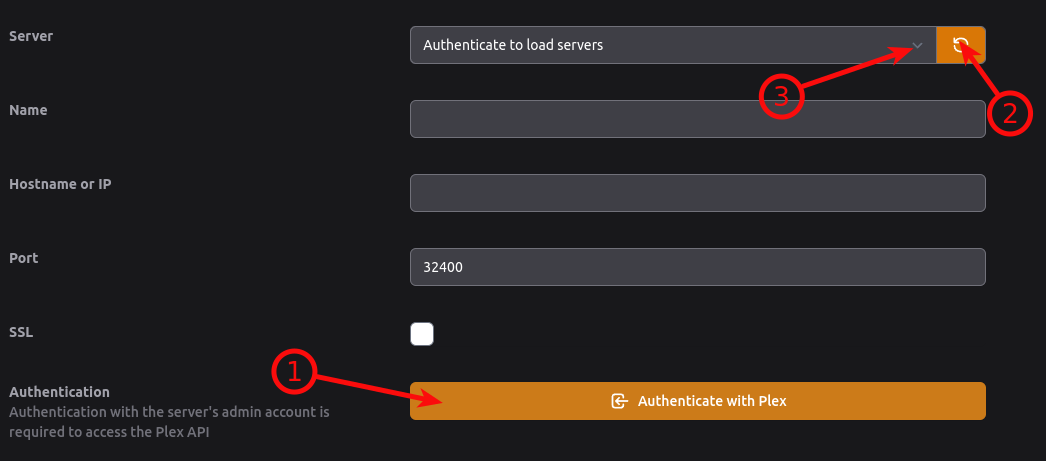
Click Save Changes, then click Test Saved.
Always click Save Changes before clicking Test Saved. Otherwise the test will fail because your configuration has not yet been saved.
Configure Overseerr
Fill in the following fields:
- Hostname or IP – your Overseerr URL.
- Port – 443.
- API Key – available under Overseerr → Settings → API Keys.
Click Save Changes, then click Test Saved.
Configure Radarr
Fill in the following fields:
- Hostname or IP – your Radarr URL.
- Port – 443.
- Base URL – leave this field empty.
- API Key – available under Radarr → Settings → General → Security.
Click Save Changes, then click Test Saved.
Configure Sonarr
Fill in the following fields:
- Hostname or IP – your Sonarr URL.
- Port – 443.
- Base URL – leave this field empty.
- API Key – available under Sonarr → Settings → General → Security.
Click Save Changes, then click Test Saved.
Verification
Always use port 443. Leave the Base URL field empty where instructed and always click Save Changes before running Test Saved.
If all services pass the connection test, Maintainerr has been configured successfully and is ready to communicate with Plex, Overseerr, Radarr and Sonarr.
