

This guide explains how to configure download clients in Readarr.
Go to Settings → Download Clients and enable Advanced Settings by clicking Show Advanced.
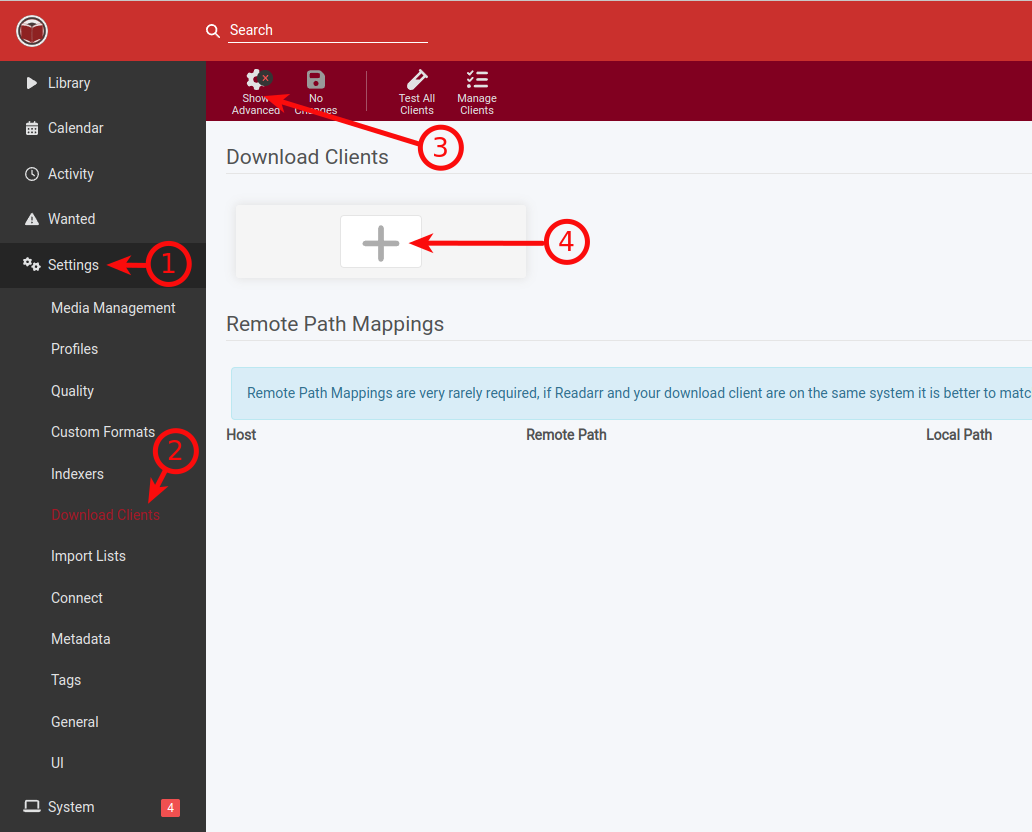
Configure rTorrent
Fill in the following fields:
- Name – name it as you wish.
- Enable – tick it.
- Host – your server hostname, available in the Client Area.
- Port – 443.
- SSL – tick it.
- Url Path –
/username/rutorrent/plugins/httprpc/action.php, where username is your service username. - Username and Password – your service login details.
Scroll down and click Test. If everything is OK, click Save.
Configure Deluge
Fill in the following fields:
- Name – name it as you wish.
- Enable – tick it.
- Host – your server hostname, available in the Client Area.
- Port – 443.
- SSL – tick it.
- Url Base –
/username/deluge, where the username is your service username. - Password – your service password.
- Category – it must be empty if the Label plugin is not activated/configured in Deluge.
Scroll down and click Test. If everything is OK, click Save.
Configure Transmission
Fill in the following fields:
- Name – name it as you wish.
- Enable – tick it.
- Host – your server hostname, available in the Client Area.
- Port – 443.
- SSL – tick it.
- Url Base –
/username/transmission, where the username is your service username. - Username and Password – your service login details.
Scroll down and click Test. If everything is OK, click Save.
Configure qBittorrent
Fill in the following fields:
- Name – name it as you wish.
- Enable – tick it.
- Host – your server hostname, available in the Client Area.
- Port – 443.
- SSL – tick it.
- Url Base –
/username/qbittorrent, where the username is your service username. - Username and Password – your service login details.
Scroll down and click Test. If everything is OK, click Save.
Configure NZBGet
Fill in the following fields:
- Name – name it as you wish.
- Enable – tick it.
- Host – your server hostname, available in the Client Area.
- Port – 443.
- SSL – tick it.
- Url Base –
/username/nzbget, where the username is your service username. - Username and Password – your service login details.
- Category – must be empty if not configured in NZBGet.
Scroll down and click Test. If everything is OK, click Save.
Configure SABnzbd
Fill in the following fields:
- Name – name it as you wish.
- Enable – tick it.
- Host – your server hostname, available in the Client Area.
- Port – 443.
- SSL – tick it.
- Url Base –
/username/sabnzbd, where the username is your service username. - API Key – taken from SABnzbd → Config → General, under the Security section.
- Username and Password – your service login details.
- Category – must be empty if not configured in SABnzbd.
Scroll down and click Test. If everything is OK, click Save.
Notes
- Your server hostname can be found in the Client Area under your service details.
- Enable Show Advanced before configuring download clients.
- Always use port 443 with SSL enabled.
- If the connection test fails, verify that the hostname, URL Path or URL Base, login details and API Key (where applicable) are correct.
