

Configure Download Clients
This guide explains how to configure download clients.
Your service hostname and your application credentials (username and password) can be found in the Client Area under your service details.
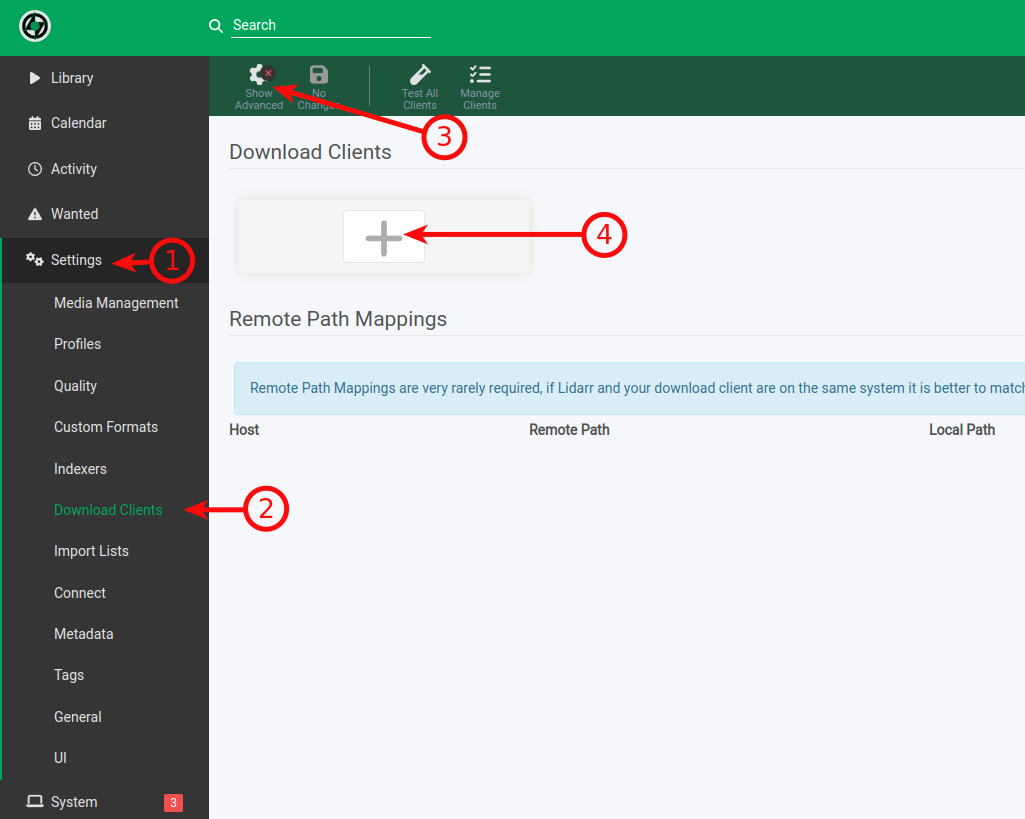
Open Settings → Download Clients and enable Advanced Settings by clicking Show Advanced.
Configure rTorrent
Fill in the following fields:
- Name – choose any name you like.
- Enable – enabled.
- Host – your service hostname.
- Port – 443.
- SSL – enabled.
- URL Path –
/username/rutorrent/plugins/httprpc/action.php, where username is your service username. - Username – your ruTorrent username.
- Password – your ruTorrent password.
Click Test. If the connection succeeds, click Save.
Configure Deluge
Fill in the following fields:
- Name – choose any name you like.
- Enable – enabled.
- Host – your service hostname.
- Port – 443.
- SSL – enabled.
- URL Base –
/username/deluge, where username is your service username. - Password – your Deluge password.
- Category – leave this field empty unless the Label plugin is configured in Deluge.
Click Test. If the connection succeeds, click Save.
Configure Transmission
Fill in the following fields:
- Name – choose any name you like.
- Enable – enabled.
- Host – your service hostname.
- Port – 443.
- SSL – enabled.
- URL Base –
/username/transmission, where username is your service username. - Username – your Transmission username.
- Password – your Transmission password.
Click Test. If the connection succeeds, click Save.
Configure qBittorrent
Fill in the following fields:
- Name – choose any name you like.
- Enable – enabled.
- Host – your service hostname.
- Port – 443.
- SSL – enabled.
- URL Base –
/username/qbittorrent, where username is your service username. - Username – your qBittorrent username.
- Password – your qBittorrent password.
Click Test. If the connection succeeds, click Save.
Configure NZBGet
Fill in the following fields:
- Name – choose any name you like.
- Enable – enabled.
- Host – your service hostname.
- Port – 443.
- SSL – enabled.
- URL Base –
/username/nzbget, where username is your service username. - Username – your NZBGet username.
- Password – your NZBGet password.
- Category – leave this field empty unless categories are configured in NZBGet.
Click Test. If the connection succeeds, click Save.
Configure SABnzbd
Fill in the following fields:
- Name – choose any name you like.
- Enable – enabled.
- Host – your service hostname.
- Port – 443.
- SSL – enabled.
- URL Base –
/username/sabnzbd, where username is your service username. - API Key – available under SABnzbd → Config → General → Security.
- Username – your SABnzbd username.
- Password – your SABnzbd password.
- Category – leave this field empty unless categories are configured in SABnzbd.
Click Test. If the connection succeeds, click Save.
Verification
Always use port 443 with SSL enabled. Verify that the hostname, URL Path or URL Base, username, password and API Key, where applicable, are entered correctly before testing the connection.
If the connection test succeeds, your download client has been configured correctly and is ready to communicate with the application.
