

This guide explains the basic features of the File Manager plugin available in ruTorrent.
The File Manager allows you to manage files and directories directly from the WebUI without using FTP or SSH. You can copy, move, rename and delete files, create directories and archives, generate torrent files and much more.
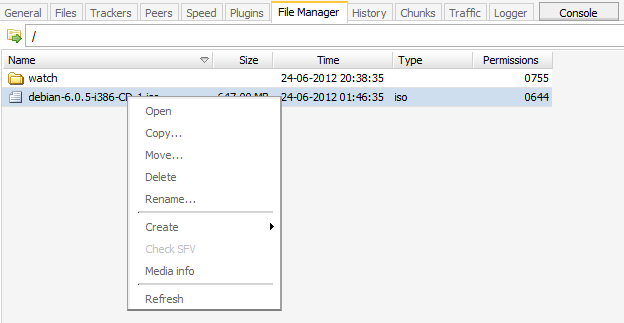
Using the File Manager
Open the File Manager tab, locate the file or directory you want to manage and right-click it to display the context menu.
The available options are described below.
Open
Works the same as double-clicking an item.
- For files, it starts downloading the selected file.
- For directories, it opens the selected directory.
Copy
Creates a copy of the selected file or directory in another location within your service.
Move
Moves the selected file or directory to another location within your service.
Delete
Removes the selected file or directory.
Rename
Renames the selected file or directory.
Simply right-click the item, choose Rename and enter the new name.
Create
The Create menu provides several useful functions.
- New .torrent – Creates a new .torrent file directly from File Manager.
- New Directory – Creates a new directory.
- New Archive – Creates a compressed archive. Supported formats include RAR, ZIP, TAR, GZIP and BZIP2.
- SFV File – Creates an .sfv file containing checksums used to verify file integrity.
- Screenshots – Generates screenshots from supported video files.
The File Manager is useful for most everyday file management tasks and eliminates the need to connect via FTP or SSH for simple operations.
