

This guide explains how to configure an FTP client to use a SOCKS5 proxy provided by SeedHost.
In some cases, clients may experience poor FTP performance due to routing issues between their ISP and our network. To improve transfer speeds, our support team may provide a SOCKS5 proxy server.
If you have received SOCKS5 proxy details from our support team, follow the instructions below to configure your preferred FTP client.
FileZilla
Open FileZilla and go to:
Edit → Settings → Connection → Generic Proxy
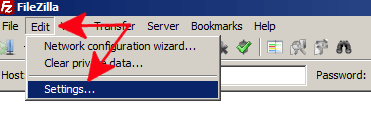
Configure the proxy using the settings provided by our support team.
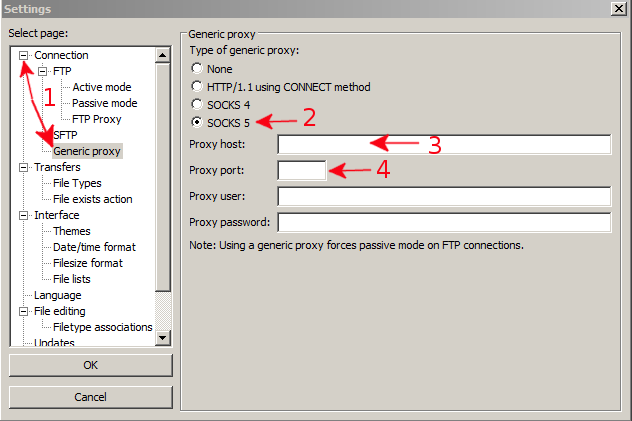
- Expand Connection and select Generic Proxy. ```
- Select SOCKS5 as the proxy type.
- Enter the proxy hostname.
- Enter the proxy port.
- Click OK. ```
CuteFTP
Open CuteFTP and go to:
Tools → Global Options → Connection → SOCKS4 & 5
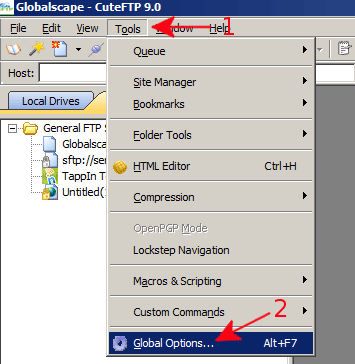
Click Add and configure the proxy using the settings provided by our support team.
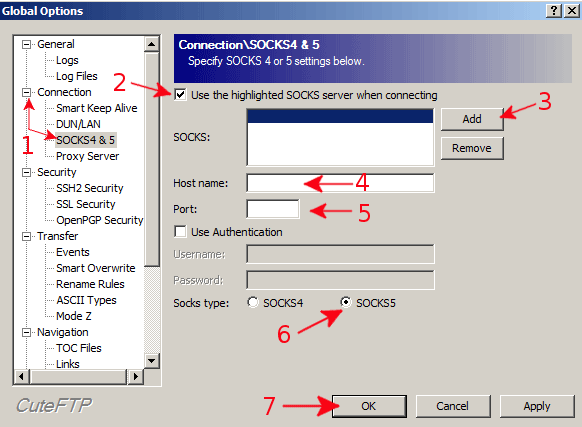
- Expand Connection and select SOCKS4 & 5.
- Enable Use the highlighted SOCKS server when connecting.
- Click Add.
- Enter the proxy hostname.
- Enter the proxy port.
- Select SOCKS5 as the proxy type.
- Click OK.
FlashFXP
Open FlashFXP and go to:
Options → Preferences → Connection → Proxy
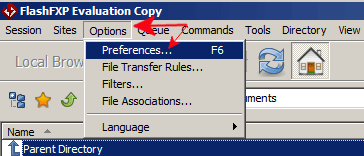
Create a new proxy profile using the settings provided by our support team.
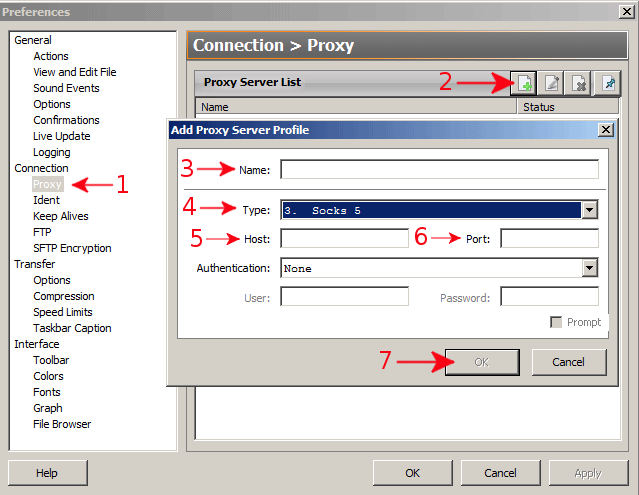
- Select Proxy from the left-hand menu.
- Click New Entry.
- Enter any name for the proxy profile.
- Select SOCKS5 as the proxy type.
- Enter the proxy hostname.
- Enter the proxy port.
- Click OK.
FTPRush
Open FTPRush and go to:
Tools → Options → Connection → Proxy Server
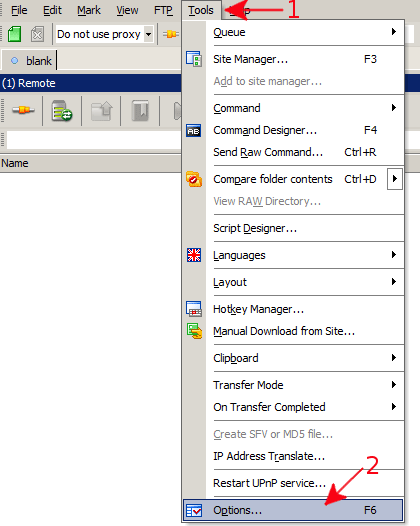
Click Add and configure the proxy using the settings provided by our support team.
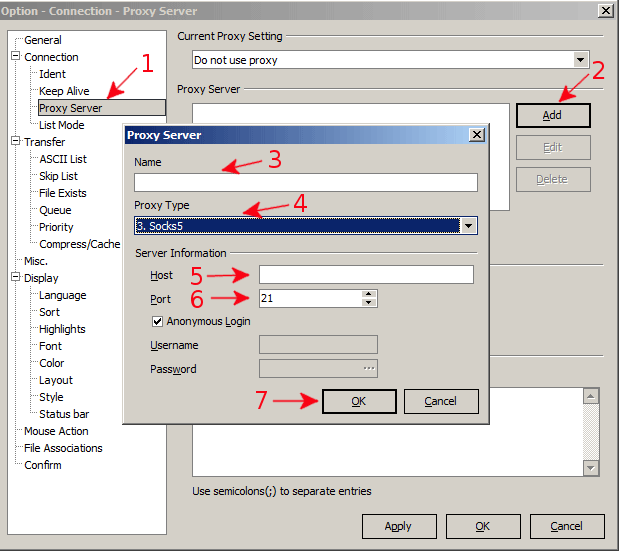
- Select Proxy Server from the left-hand menu.
- Click Add.
- Enter any name for the proxy profile.
- Select SOCKS5 as the proxy type.
- Enter the proxy hostname.
- Enter the proxy port.
- Enable Anonymous Login.
- Click OK.
Next, select the newly created proxy profile.

- Select your saved proxy profile from the Current Proxy drop-down list.
- Click OK.
BitKinex
Open BitKinex and go to:
Files → Options → Firewall/Proxy
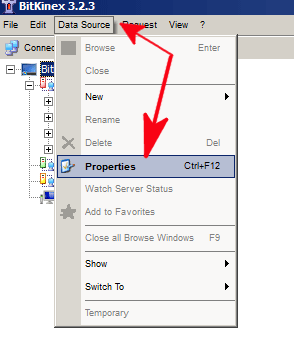
Configure the proxy using the settings provided by our support team.
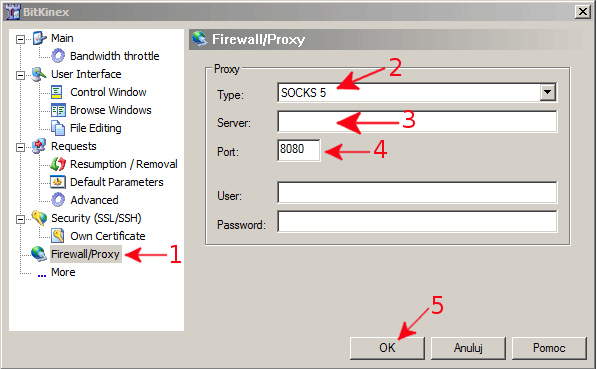
- Select Firewall/Proxy from the left-hand menu.
- Select SOCKS5 as the proxy type.
- Enter the proxy hostname.
- Enter the proxy port.
- Click OK.
Notes
- This guide only applies if you have received SOCKS5 proxy server details from our support team.
- The proxy server is intended to improve FTP transfer speeds when routing issues occur between your ISP and our network.
- If FTP performance does not improve after configuring the proxy, please contact our support team.
