

This guide explains how to configure FileZilla to connect to your SeedHost service using either SFTP (recommended) or FTPS.
Step 1 – Download and Install FileZilla
Download the latest version of FileZilla from:
https://filezilla-project.org/download.php?type=client
Install the application and launch FileZilla.
Step 2 – Configure Your Connection
Open File → Site Manager, or press Ctrl+S.
Click New Site and enter any name for the connection.
You will need the connection details from your service. They can be found in the FTP Details section of your Client Area.
SFTP (Recommended)
Configure the connection using the following settings:
- Protocol: SFTP - SSH File Transfer Protocol
- Host: your service hostname (for example: server.seedhost.eu)
- Port: 22
- Logon Type: Normal
- User: your service username
- Password: your service password
FTPS
Configure the connection using the following settings:
- Protocol: FTP - File Transfer Protocol
- Host: your service hostname (for example: server.seedhost.eu)
- Port: 21
- Encryption: Require explicit FTP over TLS
- Logon Type: Normal
- User: your service username
- Password: your service password
Step 3 – Accept the Server Certificate
When connecting for the first time, FileZilla will ask you to verify the server identity. This is expected and helps ensure you are connecting to the correct server.
SFTP
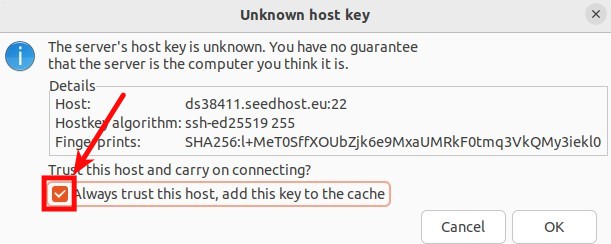
To avoid being prompted again in the future, enable Always trust this host, add this key to the cache before clicking OK.
FTPS
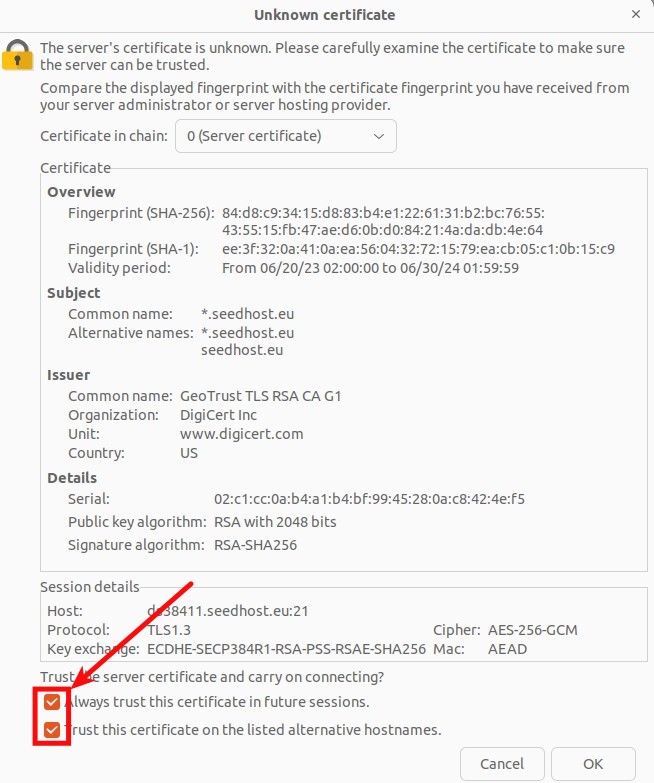
To avoid being prompted again in the future, enable Always trust this certificate in future sessions before clicking OK.
Notes
- SFTP is the recommended protocol because it encrypts all communication over SSH.
- If you prefer to use FTPS, make sure Require explicit FTP over TLS is selected as the encryption method.
- If you are unable to connect, verify that you are using the correct hostname, username and password from the FTP Details section in the Client Area.
