

This guide explains how to configure FTP Rush and perform direct server-to-server (FXP) transfers.
On SeedHost services, FXP is enabled by default. To perform a successful server-to-server transfer, the remote FTP server must also support and allow FXP connections.
Step 1 – Download and Install FTP Rush
Download the latest version of FTP Rush from:
http://www.wftpserver.com/download.htm
Install the application and launch FTP Rush.
Step 2 – Create a New Site
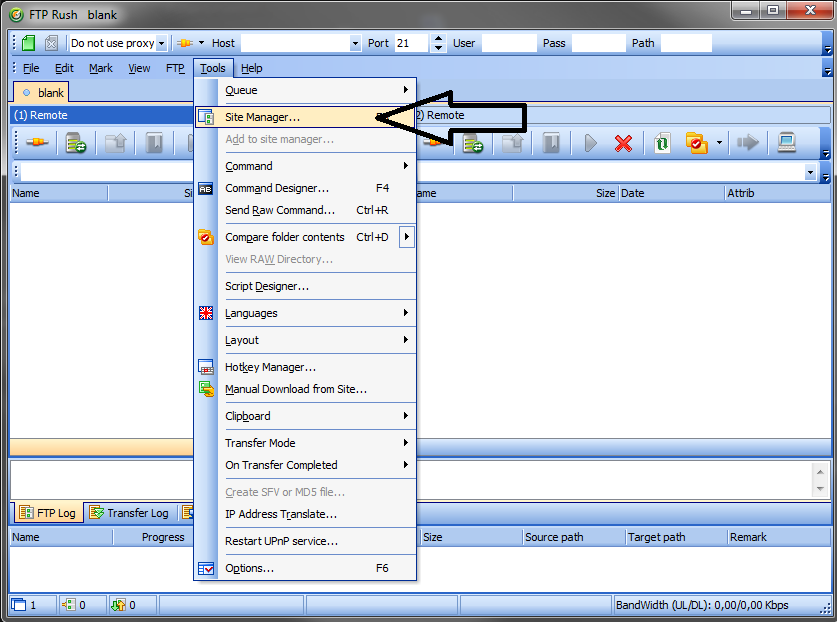
Open:
Sites → Site Manager
Click New Site, enter any name for the connection and click OK.
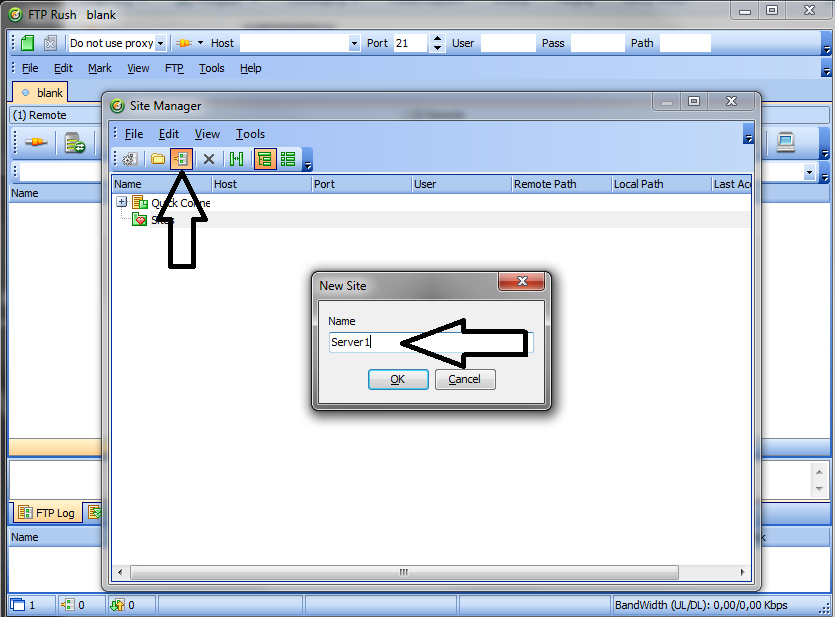
Step 3 – Configure the Connection
Select one of the following connection types:
- Normal FTP Server – standard unencrypted FTP connection.
- SSH FTP v1/v2/v3/v4/v5 – encrypted SFTP connection.
- SSL FTP (AUTH TLS or AUTH SSL) – encrypted FTPS connection.
Enter the following connection details, which can be found in the FTP Details section of your Client Area:
- Host – your server hostname or IP address.
- User Name – your service username.
- Password – your service password.
- Enable Passive Mode.
Repeat the same procedure for the second server that will participate in the FXP transfer.
Step 4 – Connect to Both Servers
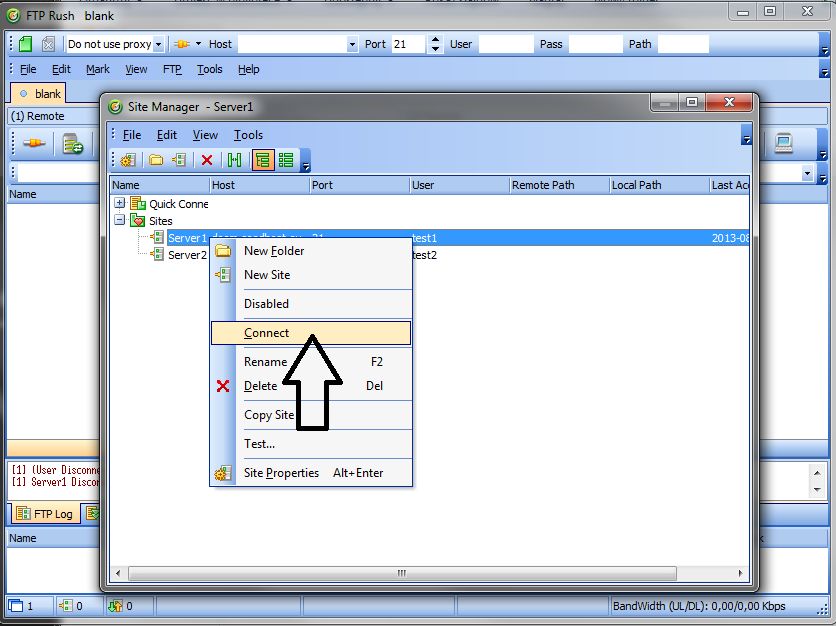
Using the Site Manager, connect to the first server and then to the second server by right-clicking the selected site and choosing Connect.
Step 5 – Transfer Files Using FXP
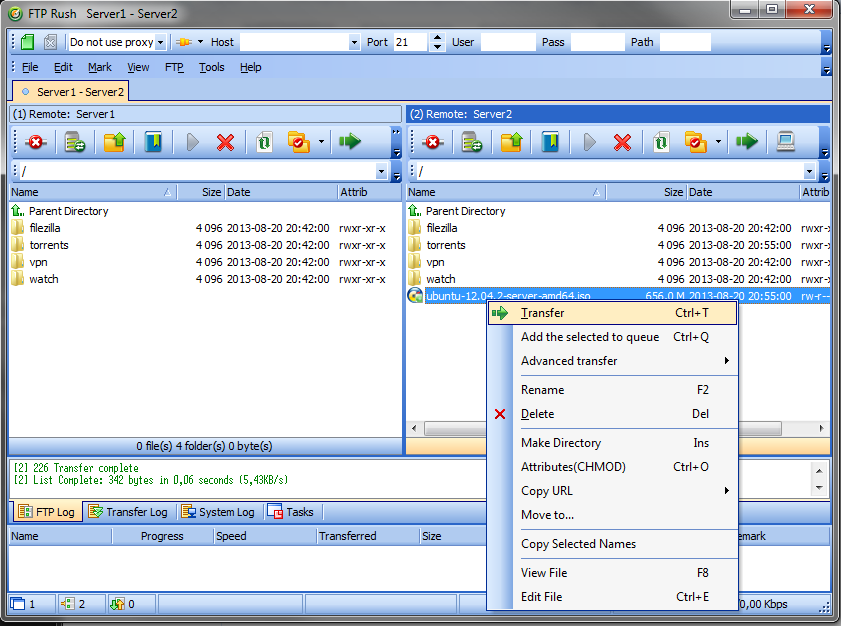
Select the file or directory you want to transfer, right-click it and choose Transfer.
Important: FXP transfers will only work if the remote FTP server also supports and allows FXP connections.
If everything has been configured correctly, the selected files will be transferred directly from one server to the other.
Notes
- FXP is enabled by default on SeedHost services.
- The remote FTP server must also support and allow FXP connections.
- SFTP connections cannot be used for FXP transfers.
- If supported by both servers, FTPS allows you to perform encrypted FXP transfers.
- If the transfer fails, verify that both FTP connections have been established successfully and that the remote server allows FXP transfers.
