
qui is a fast, modern web interface for qBittorrent. It shows one or more qBittorrent instances on one dashboard, with statistics, search, cross-seeding, automations and backups. qui does not download by itself: it controls your qBittorrent. The steps were tested with qui 1.37.0 and qBittorrent on our demo service.
1. Install qui and Find Your Login
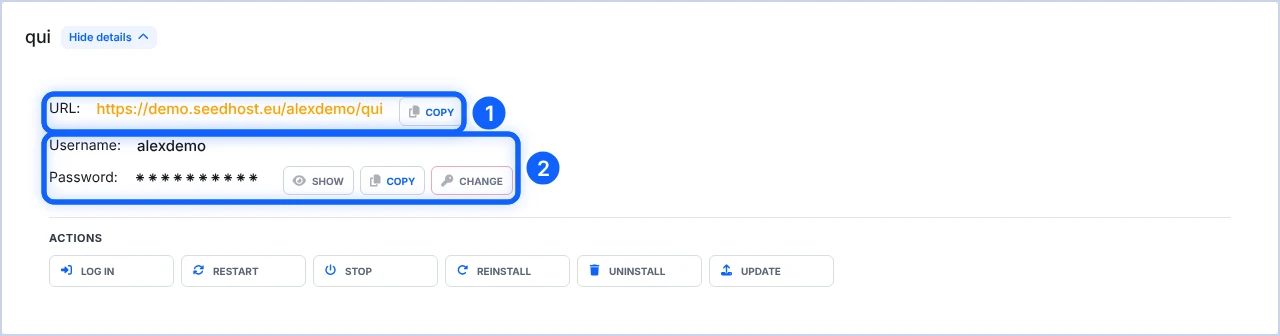
You need qBittorrent on your service: qBittorrent: Add and Manage Torrents in Your Browser. Then, in the Client Area, open the Apps tab and click Install at qui. When it is installed, click Show details. You need the URL (1) and the Username and Password (2). Open the URL or click LOG IN and sign in with them.
2. Add Your qBittorrent
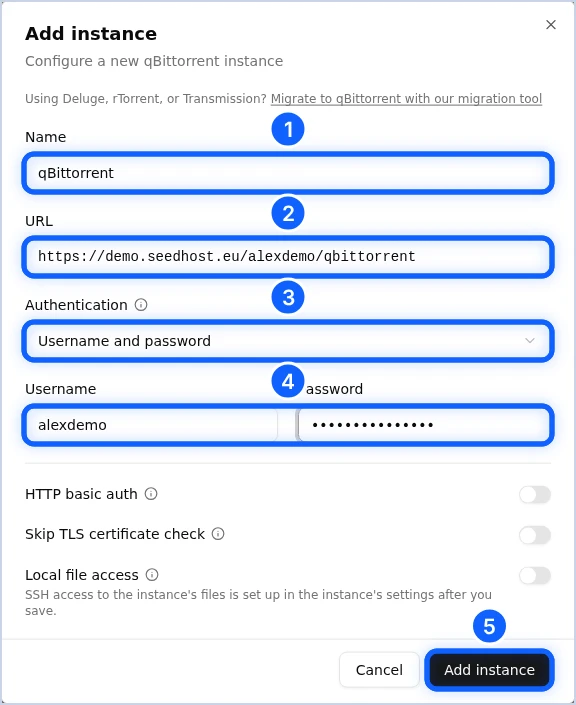
A new qui is empty and says No instances configured. The Client Area does not connect qui to qBittorrent; you add it in qui. Click Add Instance:
- Name (1): any name, for example
qBittorrent. - URL (2): the URL of qBittorrent from its details in the Client Area, for example
https://…/qbittorrent. - Authentication (3): choose Username and password.
- Username and Password (4): the login of qBittorrent from its details in the Client Area (not the login of qui).
Click Add instance (5).
3. The Dashboard
Your qBittorrent appears under Instances (1) on the left; click it to see and manage its torrents. Add Torrent (2) adds a torrent file or a magnet link. Library (3) shows the totals, here 1/1 Connected instances, and the table (4) the speed and torrents of each instance. On our demo service qui connected to qBittorrent at once and showed its upload and download history.
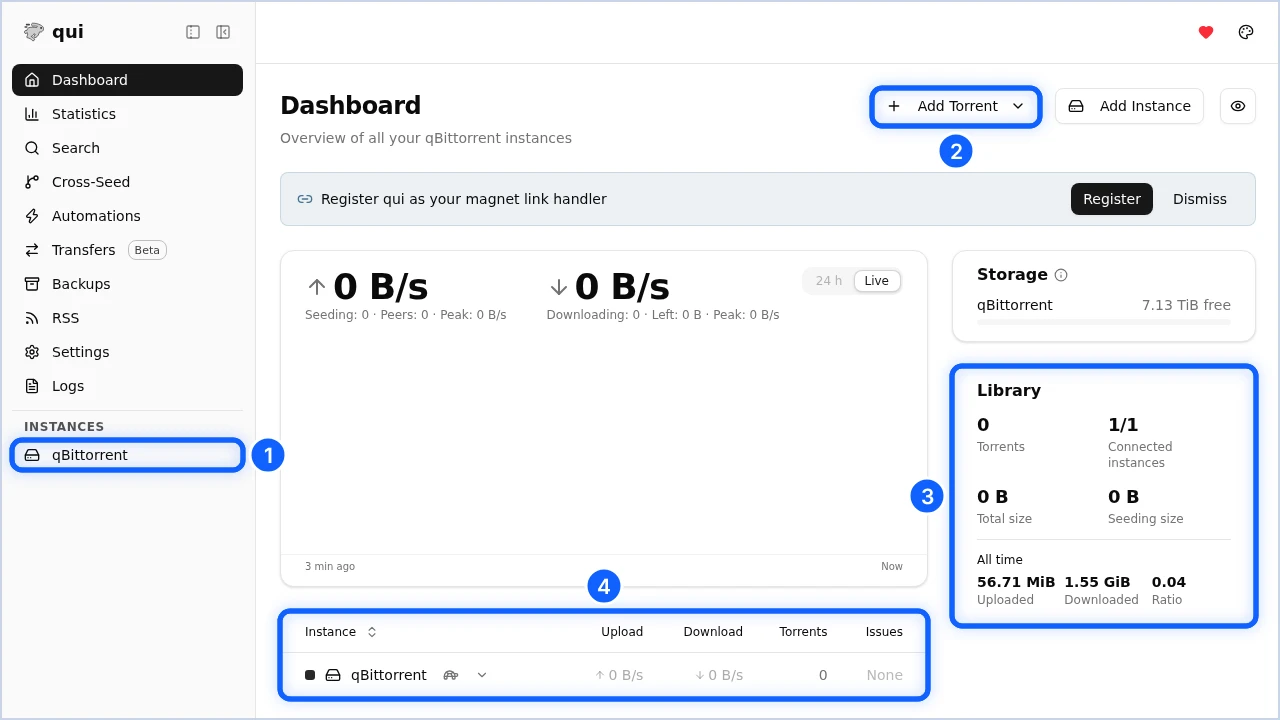
The other pages on the left: Search searches your indexers, Cross-Seed finds the same releases on other trackers, Automations runs rules on your torrents, and Backups saves the torrent list of qBittorrent. We did not test these features.
Buttons in the Client Area
- RESTART: use it when the page does not answer. STOP stops qui; qBittorrent keeps running.
- UPDATE: installs the newest version of qui.
- CHANGE at the password sets a new password for qui.
- REINSTALL installs qui again, UNINSTALL removes it. The Client Area asks you to confirm both. Your torrents stay in qBittorrent.