
ruTorrent RSS: Download New Torrents Automatically
Many trackers publish their new torrents as an RSS feed. ruTorrent can read such a feed and add the torrents that match your rules by itself, for example every new episode of a series in the quality you want. The steps were tested with ruTorrent 5.3 on our demo service, with a public feed of Linux distributions.
ruTorrent basics: ruTorrent: Add and Manage Torrents in Your Browser.
On private trackers, the RSS link usually contains your personal key (passkey). Copy it from the RSS page of your tracker and do not share it: anyone with the link can download as you.
1. Add the Feed
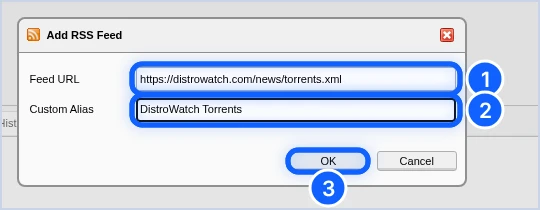
Click the RSS icon in the toolbar of ruTorrent (the green waves). The first time, it opens Add RSS Feed. When you already have feeds, it opens the RSS Manager instead; then right-click a feed on the left and choose Add RSS Feed.
- Feed URL (1): the address of the RSS feed.
- Custom Alias (2): a name you will recognise, for example the name of the tracker.
Click OK (3).
2. Look at the Items
Open Feeds on the left (1). It lists your feed with the number of items; a click shows them in the main list (2), marked RSS. The time next to Feeds counts down to the next check of the feeds: about 30 minutes in our test. To check a feed at once, right-click it and choose Update Feed.
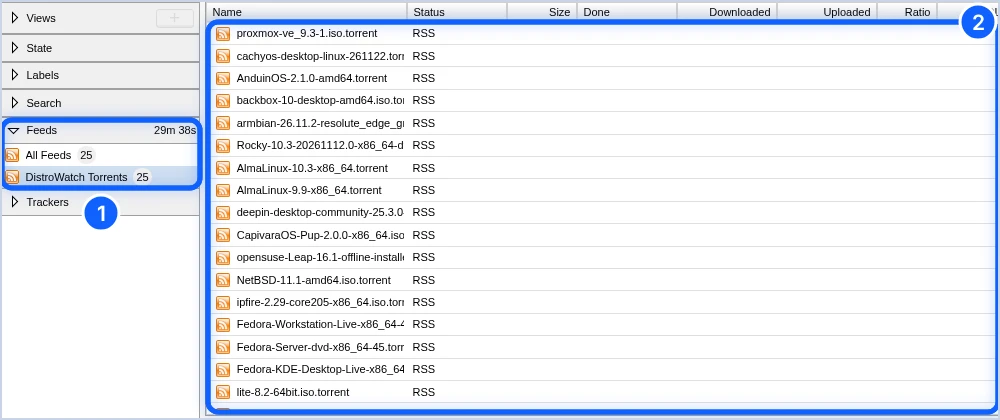
To download one item by hand, right-click it and choose Load.
3. Rules: the RSS Manager
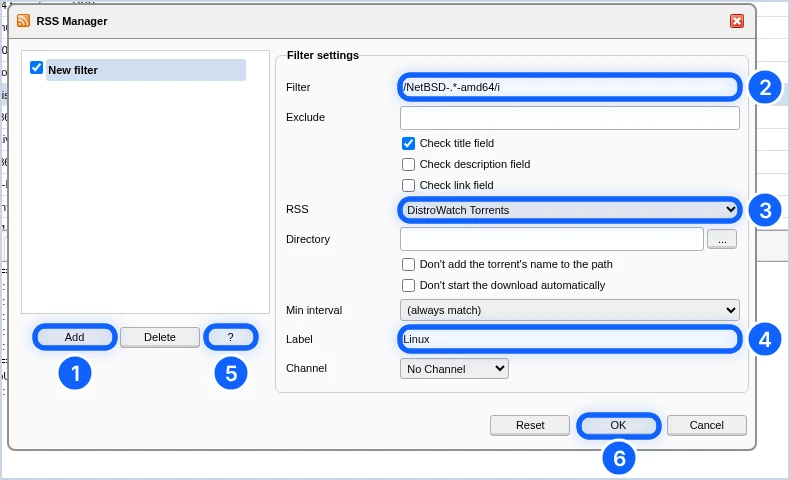
Right-click the feed and choose RSS Manager. Click Add (1) to create a rule; it appears as New filter with a tick, which means it is on. Then fill in:
- Filter (2): what the name must contain, written between slashes;
iat the end ignores upper and lower case. Examples:/NetBSD-.*-amd64/i, or/my\.show.*1080p/ifor a series in 1080p..*means "anything in between", and\.a real dot. Tick Check title field so that the rule looks at the name. - Exclude: the same kind of rule for names you do not want, for example
/720p|cam/i. - RSS (3): the feed the rule is for, or All Feeds.
- Directory: another download folder for these torrents; empty uses the normal one.
- Label (4): a label for the added torrents, so that you find them quickly.
- Don't start the download automatically: the torrents are added but stopped. Min interval: how often the same rule may add a torrent, from (always match) to (match only once) or a time such as 1 day.
Click ? (5) to test the rule: the items that match are selected in the list behind the window. In our test, exactly the NetBSD item was selected. Then click OK (6) to save.
4. What Happens Then
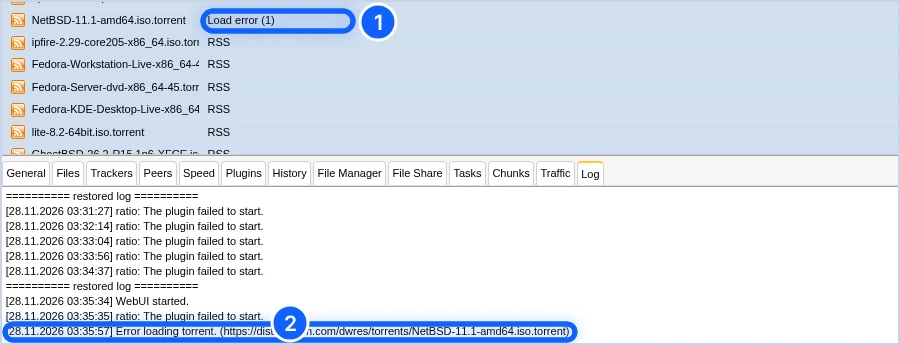
At each check of the feed, ruTorrent adds the new items that match a rule. In our test, the rule acted right after Update Feed: ruTorrent tried to add the NetBSD torrent at once.
That site did not hand out the .torrent file to our server, so the item showed Load error (1) (1) and the Log tab the line Error loading torrent. with the address (2). If you see this, open the address from the log in your browser: when the tracker refuses it, check that your feed link with the passkey is still valid. When the file can be downloaded, the torrent appears in your list with the label from your rule.
5. Change or Remove
- A rule: in the RSS Manager, click it, change it or click Delete, then OK. Removing the tick switches a rule off without deleting it.
- A feed: right-click it and choose Delete Feed. ruTorrent asks
Do you really want to delete the selected feed?; click OK. Disable Feed pauses it instead.
Torrents that were already added stay in your list.