

This guide explains how to add an existing torrent to your client using Fast Resume.
Fast Resume allows the torrent to start immediately without performing a full hash check, provided that the data already exists in the selected directory and matches the contents of the .torrent file.
Step 1 – Open the Add Torrent Window
Log in to your torrent client's WebUI.
Click Add Torrent.
Step 2 – Select the Download Directory
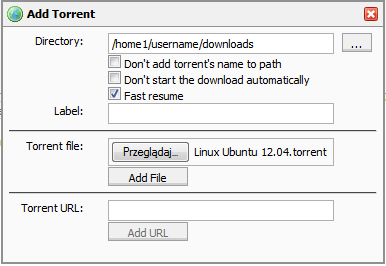
Click the ... button next to the Directory field.
Browse to and select the directory that already contains the data for the torrent.
Step 3 – Enable Fast Resume
Enable the Fast Resume option.
Step 4 – Select the Torrent File
Choose the .torrent file from your local computer.
This should be the same torrent file that was originally used to download the data.
Your configuration should look similar to the example below:
Step 5 – Add the Torrent
Click Add Torrent.
If everything has been configured correctly, the torrent will be added immediately without performing a hash check.
Fast Resume works only if the selected directory already contains the complete data and it matches the selected .torrent file.
